• Docs
  • Changelog
Sign in
Get started
    • Home
    • Your first deploy
    • Free instances
    • Platform features by plan
    • Use with coding agents
    • FAQ
    • Templates
      • Migrate from…
        • Heroku
        • Railway
    • Compute plans
    • SandboxesBeta
      • Service types
        • Which to use?
        • Static sites
        • Web services
        • Private services
        • Background workers
        • Cron jobs
        • Workflows
        • Multi-service architectures
      • Data storage
        • Render Postgres
        • Render Key Value (Redis®-compatible)
        • Persistent disks
    • How deploys work
    • Supported languages
    • Git providers (GitHub, etc.)
    • Build pipeline
    • Deploy hooks
    • Monorepo support
    • Troubleshooting deploys
      • Previewing changes
        • Single-service previews
        • Preview environments (multi-service)
      • Docker deploys
        • Overview
        • Deploy a registered image
        • Using secrets
      • Runtime
        • Native runtimes
        • Environment variables & secrets
        • Default environment variables
    • Intro to sandboxes
    • Limits
      • How to…
        • Create & configure sandboxes
        • Execute commands
        • Manage files
        • Manage snapshots
      • Use with…
        • Claude Managed Agents
        • Cursor Cloud Agents
        • OpenAI Agents API
      • SDK/CLI reference
        • TypeScript SDK
        • Python SDK
        • CLI commands
    • Intro to workflows
    • Tutorial
    • Limits & pricing
      • How to…
        • Define tasks
        • Define flowsNew
        • Trigger runs
        • Develop locally
      • SDK reference
        • TypeScript SDK
        • Python SDK
      • Example workflows
        • TypeScript examples
        • Python examples
    • Overview
    • Create & connect
    • Database credentials
    • Extensions
    • Version upgrades
    • Logical replication
    • Legacy instance types
      • Database recovery
        • Recovery & backups
        • High availability
      • Database performance
        • Read replicas
        • Connection pooling
        • Admin apps
        • Repacking tables
        • Troubleshooting performance
    • Regions
    • Inbound IP rules
    • Edge caching
    • WebSockets
    • TLS certificates
      • Custom domains
        • Overview
        • Cloudflare
        • Namecheap
        • Other DNS providers
      • Internal traffic
        • Private network
        • Private links
      • Outbound traffic
        • Default IP ranges
        • Dedicated IP addresses
        • Outbound bandwidth
        • Handling network changes
      • Static site config
        • Custom response headers
        • Redirects & rewrites
    • The Render Dashboard
    • SSH / Shell access
    • Projects & environments
      • Service actions
        • Scaling
        • Rollbacks
        • Maintenance mode
        • One-off jobs
      • Infrastructure as code
        • Blueprints overview
        • render.yaml reference
        • Terraform provider
    • In-dashboard metrics
    • Health checks
    • Uptime best practices
      • Logging
        • In-dashboard logs
        • Log streams (syslog/HTTPS)
      • OpenTelemetry (OTel) metrics
        • Provider setup
        • Metrics reference
      • Notifications
        • Webhooks
        • Email / Slack
    • MCP Server
      • Render CLI
        • Overview
        • Command reference
      • REST API
        • Overview
        • API reference
      • Third-party connections
        • OIDC support
        • Datadog
    • Workspaces, members, & roles
    • Login settings
    • Audit logs
      • Organizations
        • Overview
        • SAML SSO
    • DDoS protection
    • Platform maintenance
      • Compliance
        • Overview
        • HIPAA (US health data)
        • HIPAA best practices
        • Shared responsibility model
        • Pentest policy
    • Heroku vs Render
    • Vercel vs Render

Back Up Render Postgres to Amazon S3

In this guide we'll show you how to back up your Render Postgres instance to Amazon S3.

Render continually backs up all paid Render Postgres instances to provide point-in-time recovery. For additional control, you can create a cron job that periodically backs up your data to Amazon S3.

You will need a Render Postgres database and an Amazon Web Services (AWS) account for this guide.

By following this guide, you'll be able to:

  1. Create AWS credentials that will enable working with Amazon S3.
  2. Configure and create a backup Cron Job for your database.
  3. Validate that the backup is working.

Create AWS Credentials

We will create credentials with AWS IAM to enable working with Amazon S3.

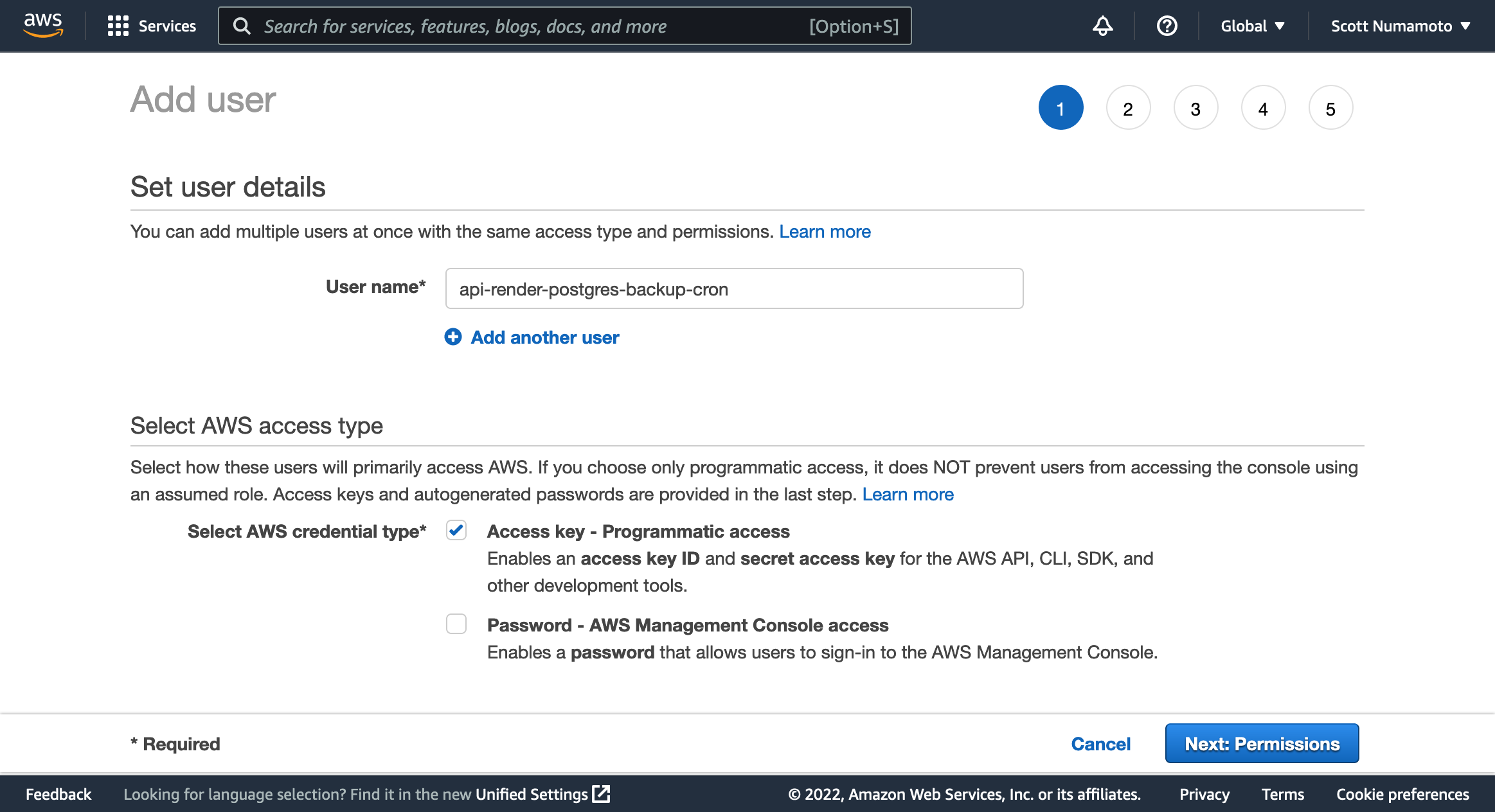
  1. Open the AWS console and navigate to the IAM service. Open the Users view and select the Add Users button.

    A screenshot of the AWS Dashboard creating a new IAM user

  2. Enter a descriptive username, such as <database name>-render-postgres-backup-cron.

  3. For Select AWS credential type* select Access key - Programmatic access.

  4. Select the Next: Permissions button to move to the Set Permissions view.

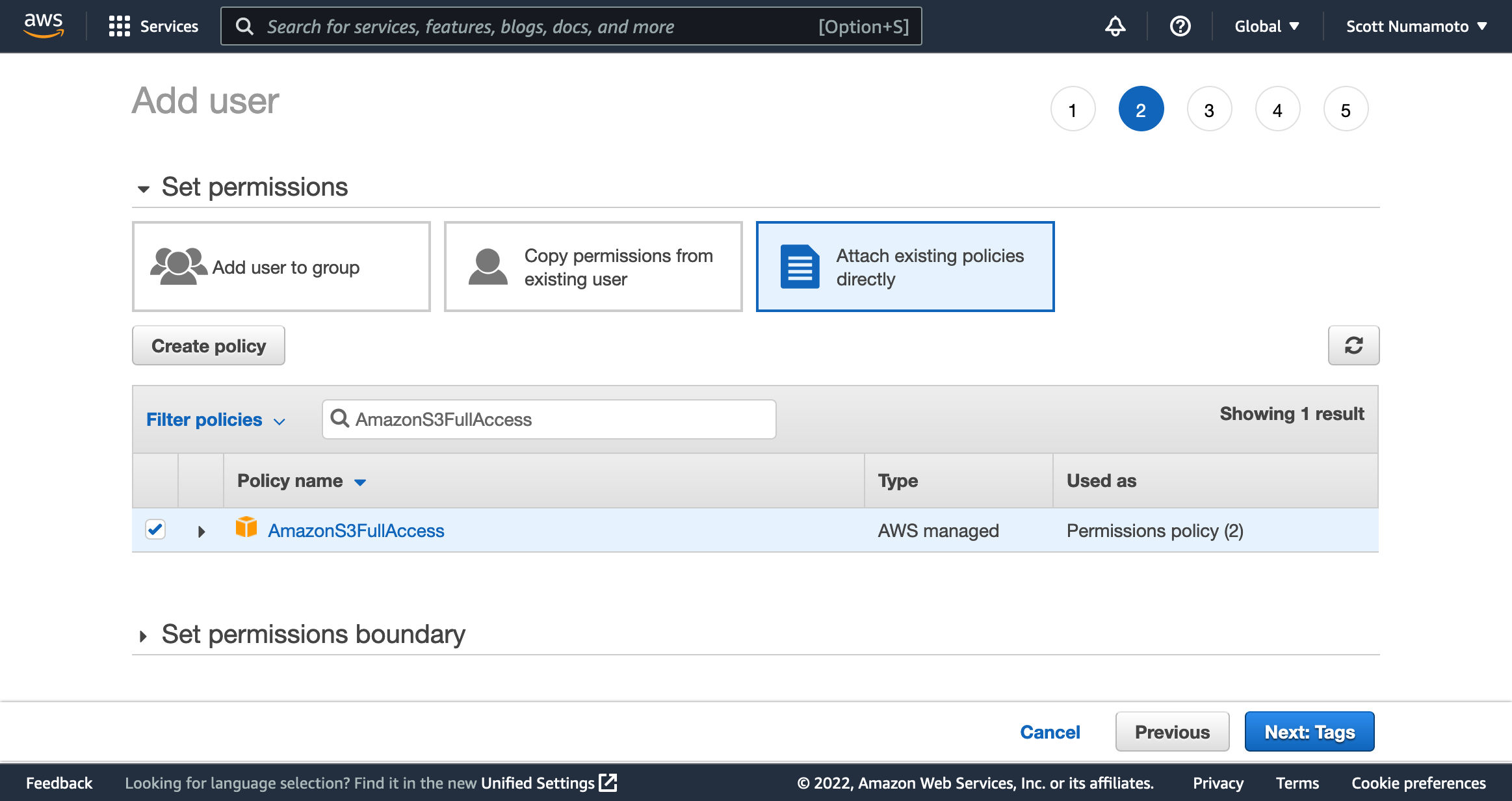
    A screenshot of the AWS Dashboard selecting the AmazonS3FullAccess policy for new IAM user

  5. In the Set Permissions view, select Attach existing policies directly and search for AmazonS3FullAccess. Check the box to select AmazonS3FullAccess.

It's possible to use finer-grained policies to authorize the Cron Job. We recommend Litestream's guide if you'd like to further lock down permissions.

  1. Skip through the next two views with the Next buttons to move to the Review view. Confirm the details of your user.

  2. Select the Create User button.

  3. Record the access key ID (AKIAXXXXXXXXXXXXXXXX) and the secret access key.

Configure and Create the Backup Cron Job

  1. Fork render-examples/postgres-s3-backups.

  2. In the render.yaml file, edit the fromDatabase name in the Cron Job's DATABASE_URL environment variable to be the name of your Render Postgres instance.

    Do not use PgBouncer as your DATABASE_URL when performing a backup. For details, see this GitHub issue.

  3. In the render.yaml file, edit the Cron Job's region to match the region of your database.

  4. By default, the Cron Job will run the backup daily at 3 AM UTC. You can change the time and frequency by modifying the Cron Job's schedule in the render.yaml file.

  5. Commit and push your changes.

  6. On the Render Dashboard, go to Blueprints and click the New Blueprint Instance button. Select your repository (after giving Render permission to access it, if you haven’t already). Alternatively, you can click the Deploy To Render button in the README of the forked repo.
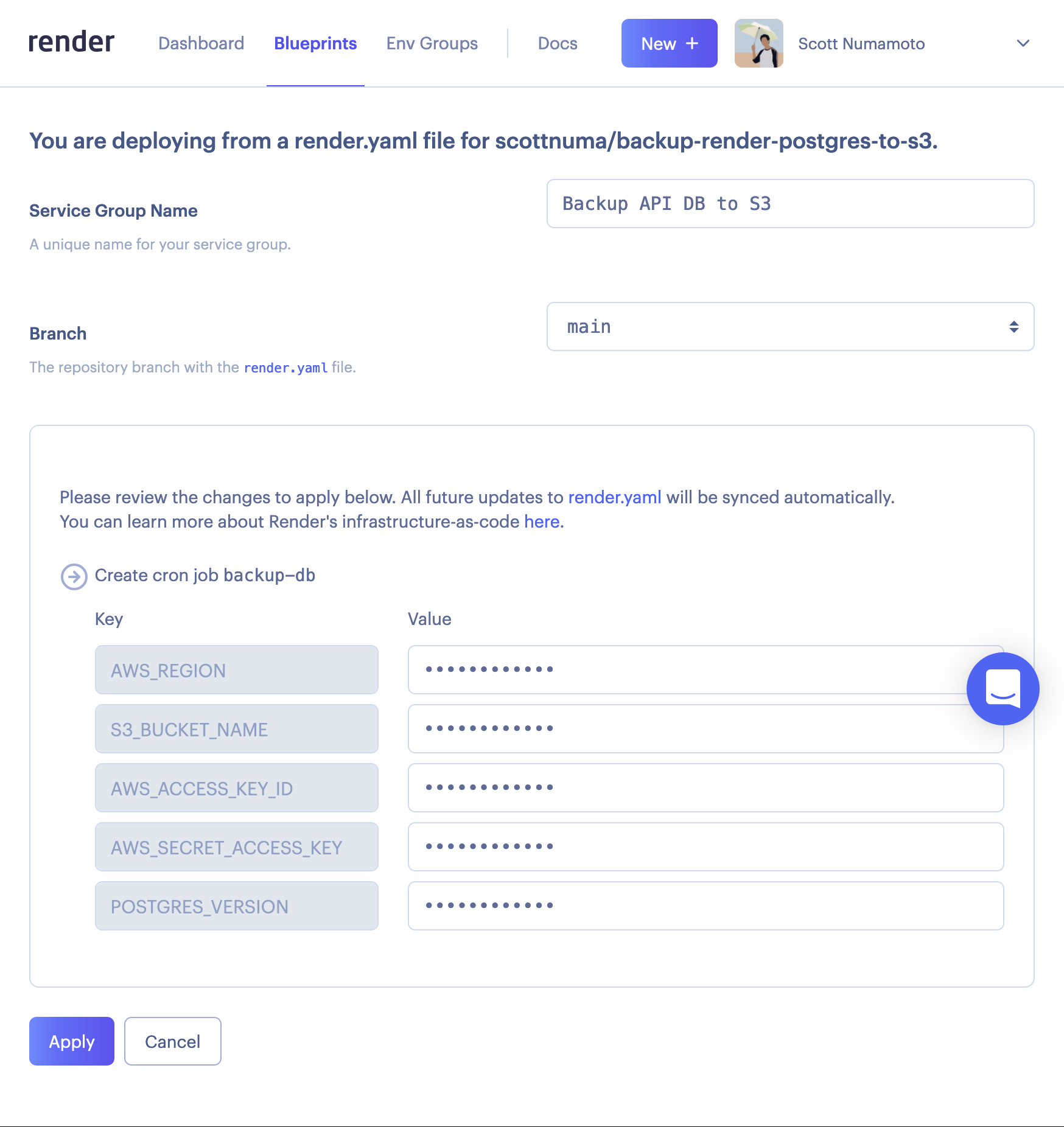
    A screenshot of the Render Dashboard filling out the new Blueprint form

  7. Enter a descriptive Service Group Name such as Backup <database name> to S3.

  8. Fill in the environment variables:

    Environment VariableValue
    AWS_REGIONChoose the AWS region closest to the region of your database. For example, a Render Postgres instance in the Oregon region would use us-west-2 for the AWS Region US West (Oregon).
    S3_BUCKET_NAMEChoose a globally unique name for your bucket. For example <your-username>-<database name>-render-postgres-backups. The name must follow Bucket naming rules.
    AWS_ACCESS_KEY_IDCopy the Access key ID (AKIAXXXXXXXXXXXXXXXX) we saved when creating the User.
    AWS_SECRET_ACCESS_KEYCopy the secret access key we saved when creating the User.
    POSTGRES_VERSIONEnter your database's PostgreSQL version. You can see the version when viewing your instance in the Render Dashboard. For example, 14.
  9. Select Apply to create the Cron Job.

Validate the Cron Job

  1. View the newly created Cron Job and wait for the first build to finish.

  2. Select the Trigger Run button and wait for the job to finish with a Cron job succeeded event.

  3. Verify the backup by inspecting the contents of your S3 bucket.

That's it! Your Cron Job will now periodically back up your Render Postgres instance to Amazon S3.

Troubleshooting

Large Databases

The aws CLI tool requires additional configuration when uploading large files to S3. If your compressed backup file exceeds 50 GB, add an --expected-size flag in the upload_to_bucket function in backup.sh.

Credential Errors

You may have an error with your IAM user if your Cron Job fails and you see an error message similar to:

Check over the Create AWS Credentials instructions.

Back Up Render Postgres to Amazon S3
  • Create AWS Credentials
  • Configure and Create the Backup Cron Job
  • Validate the Cron Job
  • Troubleshooting
    • Large Databases
    • Credential Errors
All Systems Operational
© Render Inc. All rights reserved.