Custom Domains on Render
You can apply your own custom domains to Render web services and static sites. Services with a custom domain also keep their onrender.com subdomain.
Your workspace includes an amount of custom domains based on its plan:
| Plan | Included domains |
|---|---|
|
Hobby | 2 |
|
Pro | 15 |
|
Scale | 25 |
Each custom domain you add beyond this amount costs $0.25 per month.
Render automatically creates and renews TLS certificates for all custom domains, including wildcard domains. All HTTP traffic to a custom domain is automatically redirected to HTTPS.
You add a custom domain in three steps:
- Add your domain in the Render Dashboard.
- Configure DNS with your domain's provider.
- Verify your domain in the Render Dashboard.
These steps are detailed below.
1. Add your domain in the Render Dashboard
-
In the Render Dashboard, select the service that will use your custom domain.
- Only web services and static sites support custom domains.
-
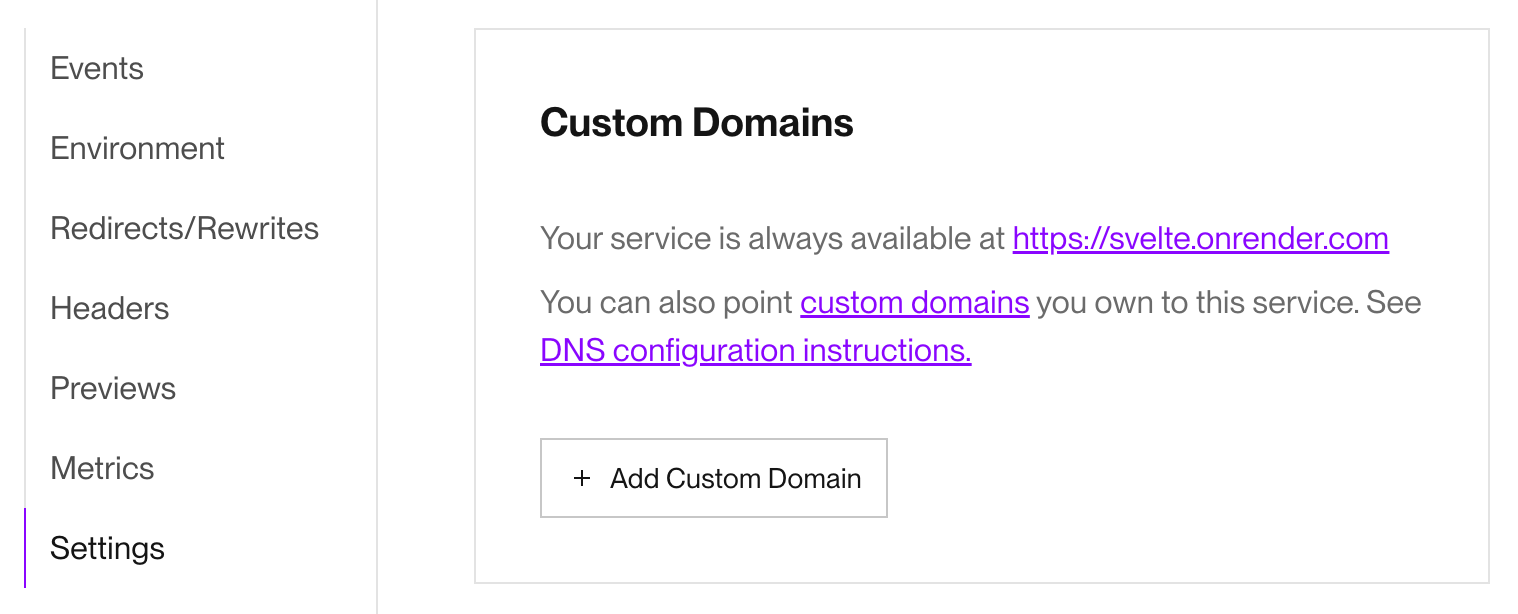
Open the service's Settings page and scroll down to the Custom Domains section:
-
Click + Add Custom Domain and provide your custom domain name.
If your domain includes Unicode characters, first convert it to Punycode with a tool like Punycoder.
For example, you would provide
ëxample.comasxn--xample-ova.com. -
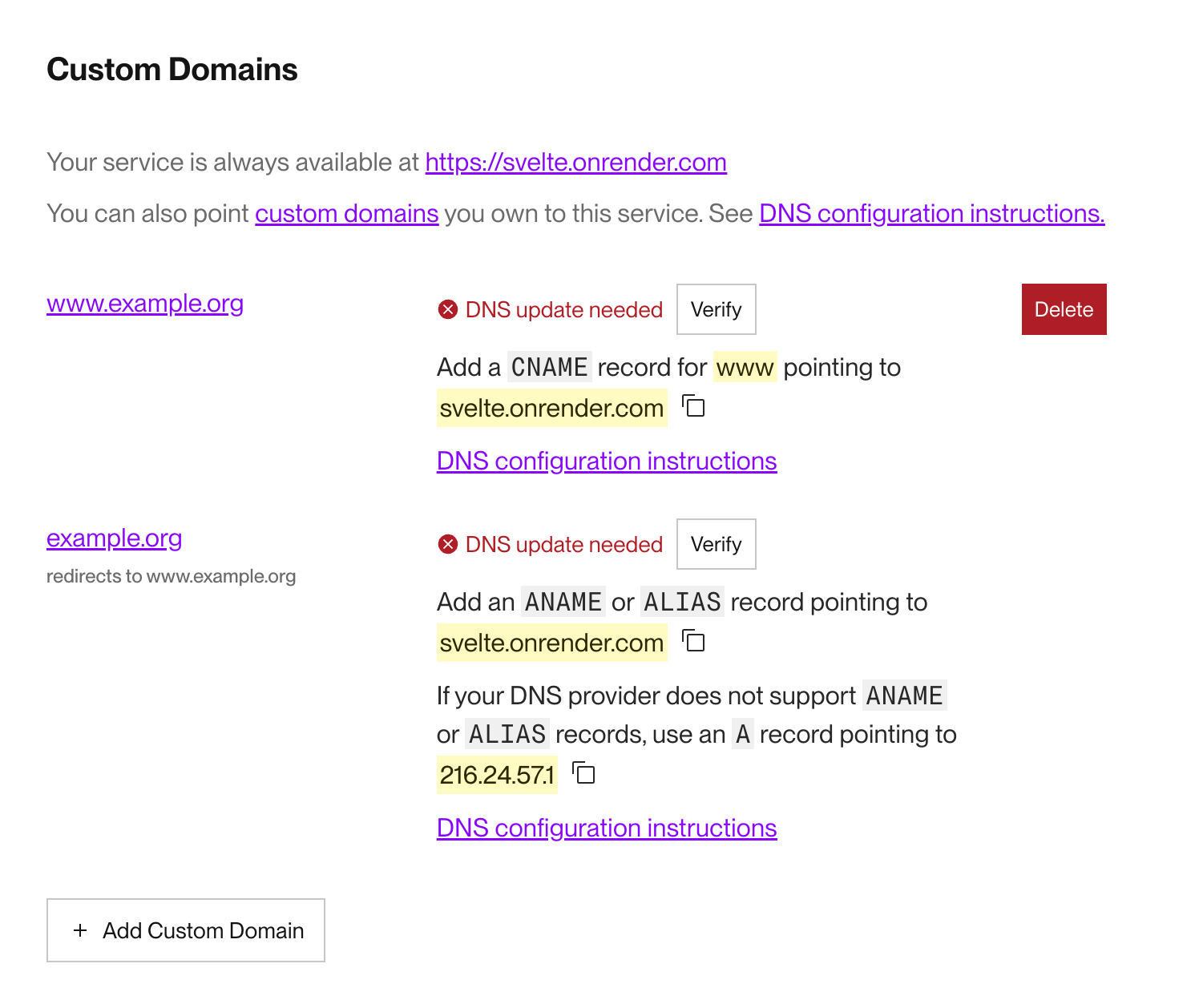
Click Save. Your custom domain now appears in the list:
-
If you add a
wwwsubdomain (e.g.,www.example.org), Render automatically adds the corresponding root domain and redirects it to thewwwsubdomain. This is shown in the screenshot above. -
If you add a root domain (e.g.,
example.org), Render automatically adds the correspondingwwwsubdomain and redirects it to the root domain.
-


Your domain does not yet point to your service! Next, you'll configure DNS.
2. Configure DNS with your provider
Remove any AAAA records from your domain while configuring DNS.
AAAA records map to an IPv6 address, and Render uses IPv4. These records can cause unexpected behavior for your custom domain.
-
Log in to your custom domain's DNS provider (such as Cloudflare, Namecheap, or GoDaddy).
-
Navigate to the DNS settings for your domain.
-
Add DNS records for your domain based on your provider, then return here:
If you're adding a wildcard domain, see additional instructions.
-
Return to the Render Dashboard and verify your domain.
3. Verify your domain
-
Return to your service's Custom Domains settings in the Render Dashboard:
-
Click the Verify button next to your custom domain.
- If verification fails, your DNS settings might not have propagated yet. Wait a few minutes and try again. See also Speeding up domain verification.
-
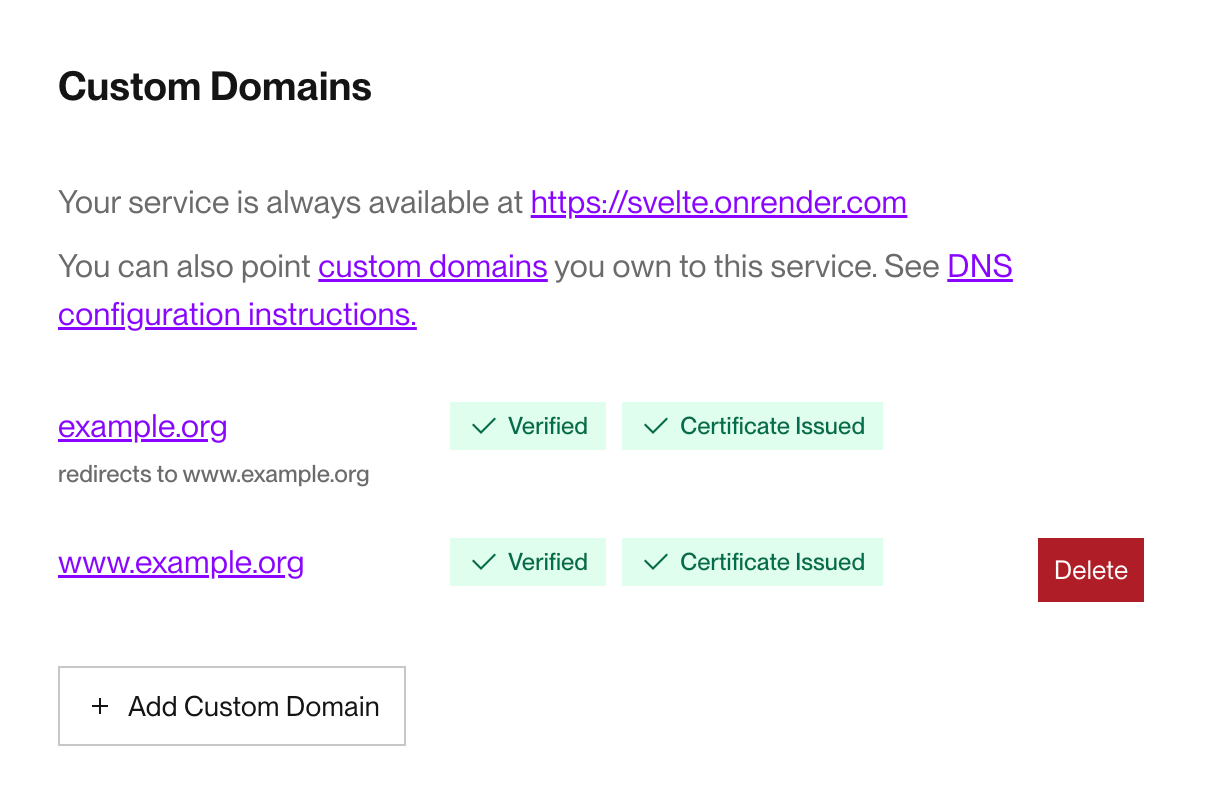
If verification succeeds, Render issues a TLS certificate for your domain and updates the verification status:
-
Try visiting your custom domain in a browser.
- If you see a 502 Bad Gateway error, Render might still be updating routing rules for your service. Wait a few minutes and try again.
-
When your custom domain loads successfully, you're good to go!

Speeding up domain verification
We recommend removing cached entries in public DNS servers after updating your DNS records. This is especially important if you're updating nameservers for your domains. Clearing the cache will speed up DNS verification and TLS certificate issuance for your domains.
Use the links below to clear cached records in popular public DNS servers:
Disabling your onrender.com subdomain
If your service has at least one custom domain, you can disable the service's default onrender.com subdomain. After you do, your service is reachable exclusively at its custom domain(s).
Configure this in any of the following ways:
-
In the Render Dashboard, select the service that you want to disable the
onrender.comsubdomain for. -
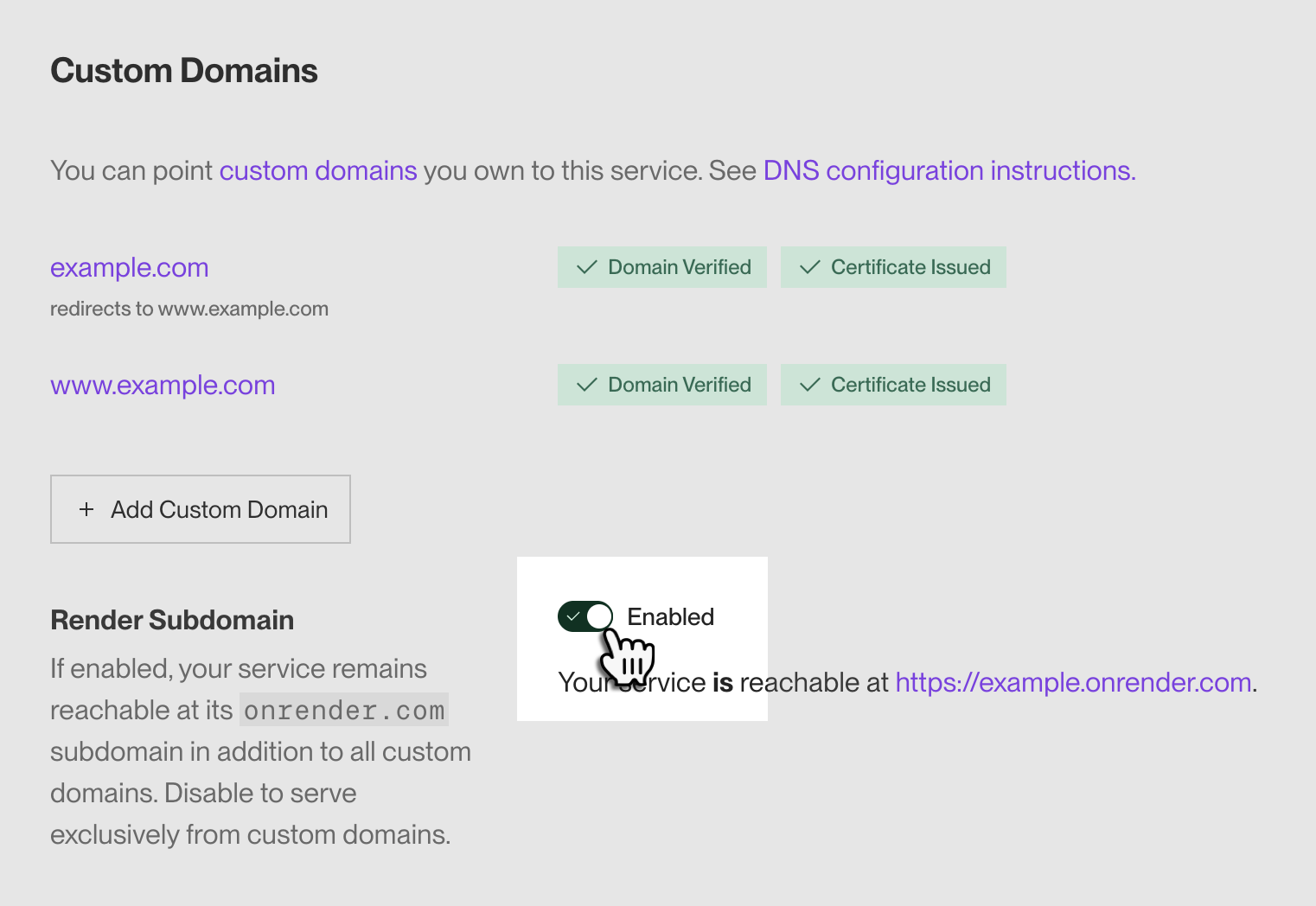
Open the service's Settings page and scroll down to the Custom Domains section:
-
Toggle the Render Subdomain setting to Disabled and confirm.

Add the following field to your service's configuration in your Blueprint YAML file:
For details, see the Blueprint YAML reference.
Use the Render API's Update service endpoint to modify your service's configuration. In your request, set the serviceDetails.renderSubdomainPolicy field to disabled. Here's a basic curl example:
After you disable your onrender.com subdomain, all requests to it receive a 404 response. These requests do not reach your service. You can re-enable the subdomain at any time.
Advanced DNS configuration
Wildcard domains
To use a wildcard domain, your root domain must also point to Render.
If your root domain points to a non-Render destination, your wildcard configuration will fail.
To direct root domain traffic to a different destination from wildcard traffic, define redirect logic in your application code.
Using Cloudflare DNS with proxying (Orange Cloud mode) requires additional considerations.
You can apply a wildcard domain (e.g., *.example.org) to a Render service to point all matching subdomains to it (e.g., docs.example.org, blog.example.org, etc.):

This configuration requires setting all of the following CNAME DNS records with your provider:
| Name | Value |
|---|---|
|
|
Your service's Example: |
|
|
Has the format Enables Render to manage certificate issuance and renewal for your wildcard domain via Let's Encrypt. Example: |
|
|
Has the format Enables Cloudflare (Render's DDoS protection provider) to validate ownership of your wildcard domain. Example: |
Using Cloudflare DNS with wildcard domains
If you add a wildcard domain (e.g., *.example.com) to Render but not the corresponding root domain (e.g., example.com), using Cloudflare with proxying enabled (orange cloud) will cause traffic for the root domain to be sent to the same Render destination as your wildcard domain.
To prevent service disruptions, make sure to disable proxying for your root domain (gray cloud). If you have any questions, please reach out to our support team in the Render Dashboard.
CAA records
If your custom domain doesn't define any CAA records, you can ignore this section.
If your custom domain defines CAA records, make sure to define records for Render's certificate authorities:
- Let's Encrypt (
letsencrypt.org) - Google Trust Services (
pki.goog)
Additionally, if you add a wildcard domain, make sure to define corresponding issuewild records for each authority.